
The vCenter Content Library is one of VMware’s most powerful features for managing templates and ISO images across multiple vCenter instances. It helps system administrators maintain consistency, share resources, and streamline virtual machine deployment across environments.
However, users occasionally encounter issues when uploading a virtual machine template, often receiving an error message that prevents the upload from completing. This guide explains what causes the Content Library template upload error in vCenter and provides clear steps to resolve it.
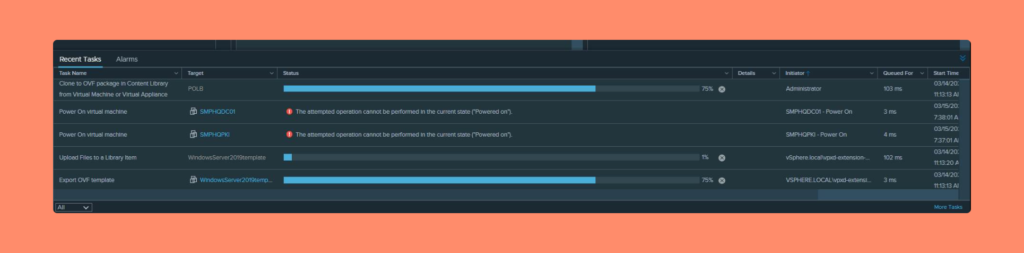
Table of Contents
Understanding Content Library and OVF
Before fixing the issue, let’s quickly review two key concepts — Content Library and OVF.
What Is the vCenter Content Library?
The Content Library is a centralized storage feature in VMware vCenter that allows administrators to manage and distribute:
- Virtual machine templates
- ISO images
- Scripts, and
- Other related files
This shared repository ensures consistency across multiple vCenter environments and simplifies resource sharing, reducing duplication and manual setup.
What Is OVF (Open Virtualization Format)?
OVF (Open Virtualization Format) is an open standard used to package and distribute virtual machines (VMs) across different platforms. Because it’s platform-independent, OVF files make it easy to move VMs between environments such as VMware, Microsoft Hyper-V, and VirtualBox.
In short, OVF simplifies VM deployment and ensures interoperability across various virtualization solutions.
The Content Library Template Upload Error Explained
When attempting to upload a VM template to the vCenter Content Library, you may encounter an error message similar to the following:
“Optional file [template-name].mf status ERROR”
This issue typically indicates that something is wrong with the uploaded template — specifically with its certificate (.cert) or manifest (.mf) file.
If you check the /var/log/vmware/content-library/cls.log, you may find log entries like these:
2023-03-15T12:25:37.299Z | DEBUG | content-library-Scheduler-2 | File/TransferStatus/BytesTransferred = WindowsServer2019template-1.vmdk/DONE/614465536
2023-03-15T12:25:37.300Z | DEBUG | content-library-Scheduler-2 | Optional file WindowsServer2019template.mf status ERROR
These lines confirm that the manifest or certificate file in the template is corrupted or incompatible.
Root Cause of the Upload Error
The Content Library template upload error in vCenter often occurs because:
- The template includes a broken or invalid certificate (.cert) or manifest (.mf) file.
- The template package itself is corrupted or incomplete.
- The vCenter VPXD service holds residual task data from previous failed uploads.
Step 1: Clear Recent Tasks by Restarting the VPXD Service
First, clear any recent tasks that might be blocking the current upload.
To do this:
- Log in to your vCenter Server Appliance (VCSA) using SSH.
- Run the command below to restart the VPXD service:
service-control --restart vpxd - Wait a few minutes for the service to restart.
Restarting VPXD clears any stuck background tasks and resets the Content Library’s session state.
Step 2: Test Upload with a Different Template
Next, try uploading another working template or ISO image to the same Content Library.
- If the other upload works fine → the issue is isolated to the problematic template.
- If no templates can be uploaded → the issue may lie in the Content Library configuration or vCenter services.
Step 3: Recreate the Problematic Template
If the issue is confirmed to be with the template:
- Rebuild or re-export the virtual machine as a new OVF/OVA template.
- Ensure no corrupt or extraneous files (like outdated
.mfor.certfiles) are included. - Upload the new version to the Content Library again.
Most administrators find that creating a clean template without manifest or certificate files resolves the upload failure entirely.
Best Practices to Prevent Future Upload Errors
- Always verify templates before importing them into the Content Library.
- Avoid unnecessary manifest files unless signing is required.
- Keep vCenter and ESXi versions consistent across your environment.
- Regularly check logs under
/var/log/vmware/content-library/for early signs of corruption.
Following these simple steps helps maintain a healthy, reliable Content Library setup.
FAQs About Content Library Template Upload Error in vCenter
The error typically occurs due to a corrupted or invalid .mf or .cert file inside the VM template.
You can review errors in the log file located at /var/log/vmware/content-library/cls.log on your vCenter Server Appliance.
In most cases, restarting the VPXD service alone clears the issue without needing a full vCenter reboot.
Recreate templates cleanly, avoid including unnecessary manifest files, and always verify template integrity before uploading.
While most common in vCenter 7.x environments, similar issues can appear in earlier versions depending on template configuration.
Conclusion
The Content Library template upload error in vCenter is usually caused by a corrupted manifest or certificate file within the template. By restarting the VPXD service, testing with other templates, and recreating the problematic one, you can quickly resolve this issue.
With consistent template management and version control, you’ll ensure smoother deployments and fewer upload failures in the future.