
![How to Fix the [HardwareError] Issue During an ESXi Upgrade (Step-by-Step Guide)](https://www.corpit.org/wp-content/uploads/2023/02/How-to-Fix-the-HardwareError-Issue-During-an-ESXi-Upgrade-Step-by-Step-Guide-300x225.png)
Encountering the HardwareError during an ESXi upgrade can be frustrating, but don’t worry — this guide will help you fix HardwareError in ESXi upgrade step-by-step. By identifying unsupported devices and checking hardware compatibility, you can quickly resolve the issue and complete your upgrade smoothly.
In this guide, you’ll learn how to identify, diagnose, and fix the HardwareError in ESXi upgrade step-by-step, ensuring your VMware environment runs smoothly and without compatibility issues.
Table of Contents
Understanding the [HardwareError] Issue
The [HardwareError] warning occurs during the ESXi upgrade precheck when the system detects unsupported hardware components.
Here’s a sample error message you might see:
[HardwareError]
Hardware precheck of profile ESXi-7.0U3i-20842708-standard failed with warnings:
<UNSUPPORTED_DEVICES WARNING: This host has unsupported devices [<PciInfo 'Ethernet controller [8086:10e8 8086:a02c]'>]>
This message means your host includes unsupported Ethernet controller devices, identified by their Vendor ID (VID) and Device ID (DID) codes.
Identifying the Problem
To confirm the issue, review the device codes provided in the error message.
Here’s an example breakdown:
| Parameter | Value | Description |
|---|---|---|
| Vendor ID (VID) | 8086 | Identifies the hardware manufacturer (Intel in this case). |
| Device ID (DID) | 100f | Identifies the specific device model. |
| Sub-Vendor ID (SVID) | 15ad | Specifies the vendor of the subsystem. |
| Sub-Device ID (SDID) | 0750 | Identifies the particular subsystem model. |
Step 1: Check Hardware Compatibility
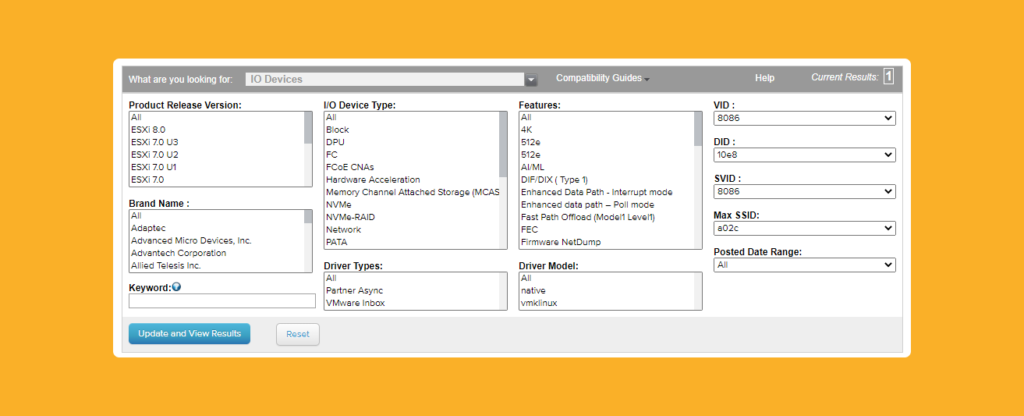
Once you have these IDs, check the compatibility of your hardware with the ESXi version you’re trying to install.
- Visit VMware’s official Hardware Compatibility Guide (HCL).
- Enter the VID, DID, SVID, and SDID values into the search fields.
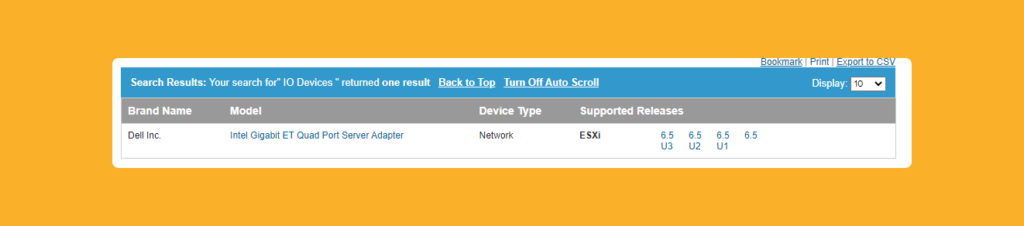
- Review the results to see which ESXi versions are supported for your hardware.
If your hardware model does not appear in the HCL, it’s likely unsupported for that version of ESXi.
Step 2: Determine Compatibility or Upgrade Options
If the compatibility check shows your hardware is not supported:
- Contact your hardware vendor to confirm whether a firmware upgrade or driver update is available.
- If no update exists, consider using an older version of ESXi that supports your hardware.
- Alternatively, replace the unsupported device with one that appears in VMware’s HCL for your target ESXi version.
Step 3: Retry the ESXi Upgrade
After ensuring hardware compatibility:
- Apply any firmware or driver updates recommended by your hardware vendor.
- Reboot your ESXi host.
- Retry the ESXi upgrade process.
If all components are now supported, the upgrade should proceed successfully without the [HardwareError] warning.
Pro Tip: Keep Hardware Compatibility in Check
To avoid similar issues in future upgrades:
- Regularly check the VMware HCL before upgrading ESXi.
- Document your hardware models and driver versions.
- Use vSphere Lifecycle Manager for consistent hardware and software compliance checks.
For more details, you can explore VMware’s official upgrade documentation.
FAQ
The [HardwareError] issue occurs when ESXi detects unsupported or incompatible hardware, often during a pre-upgrade check.
To fix the error, identify the unsupported device using its VID/DID codes, verify compatibility via VMware’s HCL, and update or replace the hardware if needed.
These warnings appear when a host contains hardware that’s not certified or recognized by the target ESXi version.
It’s not recommended. Upgrading with unsupported devices may cause instability or hardware failures. Always resolve the compatibility issue first.
Use VMware’s Hardware Compatibility Guide and enter your Ethernet controller’s VID, DID, SVID, and SDID.
Conclusion
Fixing the [HardwareError] issue during an ESXi upgrade involves identifying unsupported devices, verifying hardware compatibility, and applying the necessary updates or replacements.
By following this guide, you can quickly diagnose the cause, ensure your hardware meets VMware’s requirements, and complete your ESXi upgrade successfully.
Keeping your hardware aligned with VMware’s compatibility list is the best way to maintain a stable and efficient virtual infrastructure.