

When upgrading vCenter Server, you might encounter a frustrating certificate-related error that halts the process:
“FQDN server name is not present in certificate subject alt names.”
This issue usually occurs due to a mismatch between the vCenter Server’s Fully Qualified Domain Name (FQDN) and the SSL certificate’s Subject Alternative Name (SAN) fields.
In this quick guide, we’ll explain what causes this error and show you a simple workaround to fix it effectively.
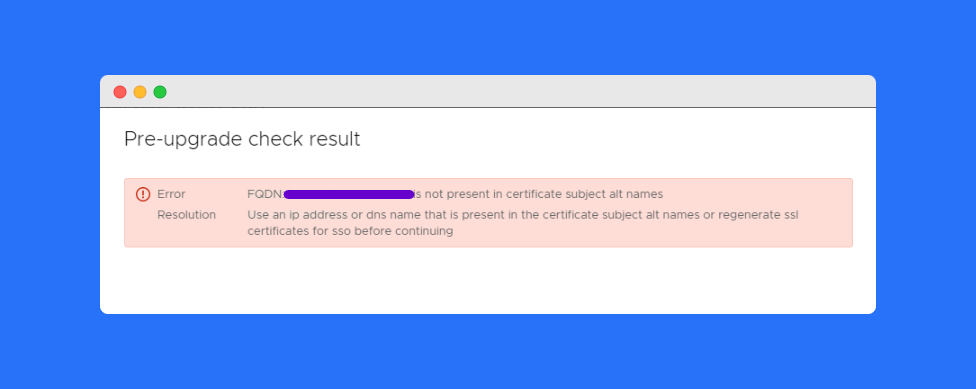
Table of Contents
Understanding the Error
The error “FQDN server name is not present in certificate subject alt names” appears when the vCenter SSL certificate does not include the correct FQDN under its SAN attributes.
This mismatch prevents the system from verifying the certificate properly, causing the vCenter upgrade to fail.
The fix? Reset and regenerate all certificates inside vCenter to ensure the FQDN is included in the SAN list.
How to Fix “FQDN Server Name Not Present in Certificate Subject Alt Names” in vCenter
Follow these simple steps to resolve the issue:
Log in to the vCenter Server Shell
Use SSH or direct console access to log in to your vCenter Server appliance.
ssh root@<vcenter-fqdn>Launch the vSphere Certificate Manager
Once logged in, start the vSphere Certificate Manager tool by running:
/usr/lib/vmware-vmca/bin/certificate-managerThis utility helps manage, renew, and reset all vCenter certificates.
Reset All Certificates
When prompted, choose Option 8: Reset all Certificates.
This will replace all existing certificates with new ones generated by the VMware Certificate Authority (VMCA).
Enter Administrator Credentials
Provide your vCenter administrator username and password when asked.
Example:
Administrator@vsphere.localProvide Certificate Information
Finally, enter your organization’s certificate details — including FQDN, organization name, and country — when prompted.
Once the reset is complete, vCenter will generate new certificates with the correct FQDN in the Subject Alternative Name field.
Verification
After completing the above steps:
- Restart the vCenter services.
- Log in to the vSphere Client.
- Verify that the new certificate includes your FQDN under “Subject Alternative Names.”
You should now be able to proceed with your vCenter upgrade without any certificate-related errors.
Frequently Asked Questions (FAQs)
This error occurs when the vCenter SSL certificate does not include the server’s FQDN in the Subject Alternative Name (SAN) field.
Use the vSphere Certificate Manager and choose Option 8 – Reset all Certificates to generate new ones with the correct FQDN.
No. Resetting the certificates will not change your configuration, but it will replace old SSL certificates with new ones.
Yes. Always ensure your vCenter SSL certificates include the FQDN in the SAN field before starting an upgrade.
Conclusion
The error “FQDN server name is not present in certificate subject alt names” in vCenter is caused by mismatched SSL certificate entries.
By resetting all certificates using the vSphere Certificate Manager, you can easily resolve this issue and continue your upgrade seamlessly.