
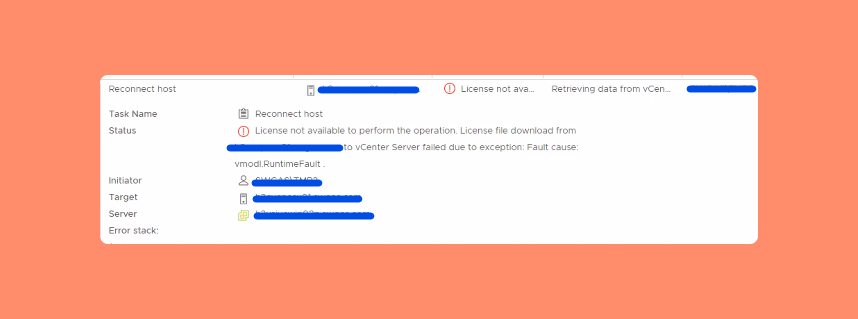
One of the most common issues vSphere administrators face is the “License not available to perform the operation” error in vCenter Server. This error often occurs when trying to connect a host to vCenter after a patch or update.
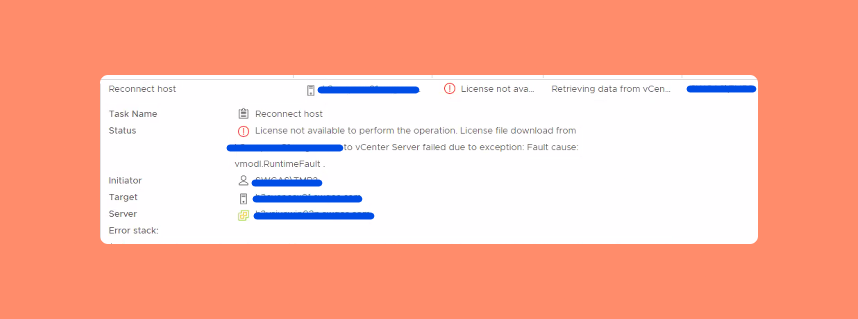
In this article, we’ll walk you through the root causes, diagnostic steps, and solutions to help you fix the vCenter License Not Available Error quickly and effectively.
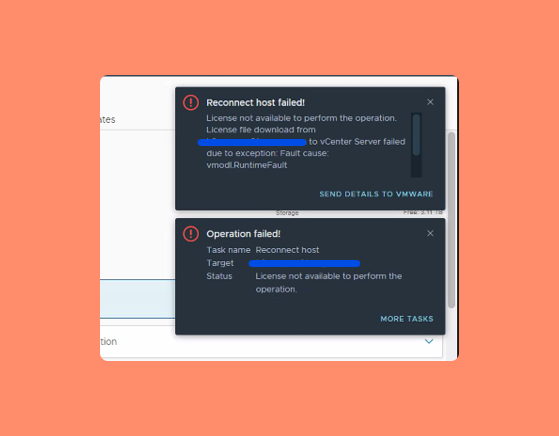
Table of Contents
Common Causes of the Error
Before jumping into troubleshooting, it’s important to understand what triggers this issue.
The vCenter License Not Available Error can occur due to:
- Stale or invalid license entries in vCenter
- Broken replication between linked vCenter instances
- Licensing synchronization issues after patching
- ELM (Enhanced Linked Mode) misconfiguration
In the real-world scenario discussed here, the problem started after a recent host patch, and the customer had two vCenter Servers configured in ELM mode.
Step-by-Step Solution to Fix the vCenter License Not Available Error
Step 1: Verify License Validity
Start by checking whether your vCenter license is valid and active.
You can verify this from the vSphere Client under:
Administration → Licensing → Licenses
If your license is valid, proceed to the next step.
Step 2: Remove Stale License Entries
Sometimes, old or stale license records remain in vCenter’s LDAP directory, causing conflicts. To clean these up, export the license data first using the following command:
ldapsearch -H ldap://localhost -x -D "cn=administrator,cn=users,dc=vsphere,dc=local" -W -b "cn=LicenseService,cn=Services,dc=vsphere,dc=local" -s sub -LLL -o ldif-wrap=no >/tmp/LicenseService_export.ldif
Then, delete any unwanted or stale licenses using this command:
ldapdelete -H ldap://localhost -x -D "cn=administrator,cn=users,dc=vsphere,dc=local" -W 'cn=LicenseEntity_xxxxx,cn=LicenseService,cn=Services,dc=vsphere,dc=local'
After this cleanup, try connecting the host again.
If the problem persists, move on to replication checks.
Step 3: Check and Repair vCenter Replication
A broken replication between vCenter instances (especially in ELM environments) can also cause the License Not Available Error.
Run the following commands to verify replication status:
/usr/lib/vmware-vmdir/bin/vdcrepadmin -f showservers -h localhost -u administrator
/usr/lib/vmware-vmdir/bin/vdcrepadmin -f showpartnerstatus -h localhost -u administrator
/usr/lib/vmware-vmafd/bin/dir-cli state get
Alternatively, you can check replication from the vCenter GUI:
Go to Administration → System Configuration → verify the replication health status.
You can also use this command-line tool for additional checks:
/usr/lib/vmware-vmdir/bin/vdcadmintoolOnce you identify replication issues, fix them using VMware’s official vCenter Replication Repair Guide.
After successful replication repair, retry connecting the host — it should now connect without errors.
Why Replication Affects Licensing
When multiple vCenters are linked in ELM mode, they share a common license repository.
If replication breaks, one vCenter might not see updated licenses from another, leading to the “License not available” message.
Keeping replication healthy ensures consistent license synchronization across your environment.
Frequently Asked Questions (FAQs)
This error often occurs due to broken replication or stale license data in vCenter, especially after applying host patches.
Use LDAP commands to export and delete stale license data, then recheck the license status in vCenter.
Yes. If replication between vCenter servers fails, license synchronization may break, triggering this error.
Run replication verification commands like /usr/lib/vmware-vmdir/bin/vdcrepadmin or check from the vCenter System Configuration dashboard.
Regularly verify replication health, keep both vCenters on the same version, and perform scheduled license audits.
Conclusion
The vCenter License Not Available Error usually stems from broken replication or stale license records. By verifying your license, cleaning up LDAP entries, and fixing replication between vCenters, you can easily restore connectivity.
If you’re still facing issues, check VMware’s official documentation or consult the VMware community for expert assistance.