

After upgrading your vCenter Server, you may encounter an error when accessing Lifecycle Manager (LCM). The LCM section might display an error message, and when you open the Update tab in the host section, it appears blank or fails to load.
This common vCenter Lifecycle Manager error after upgrade can interrupt your workflow, but the good news is—it’s fixable with a few simple steps.
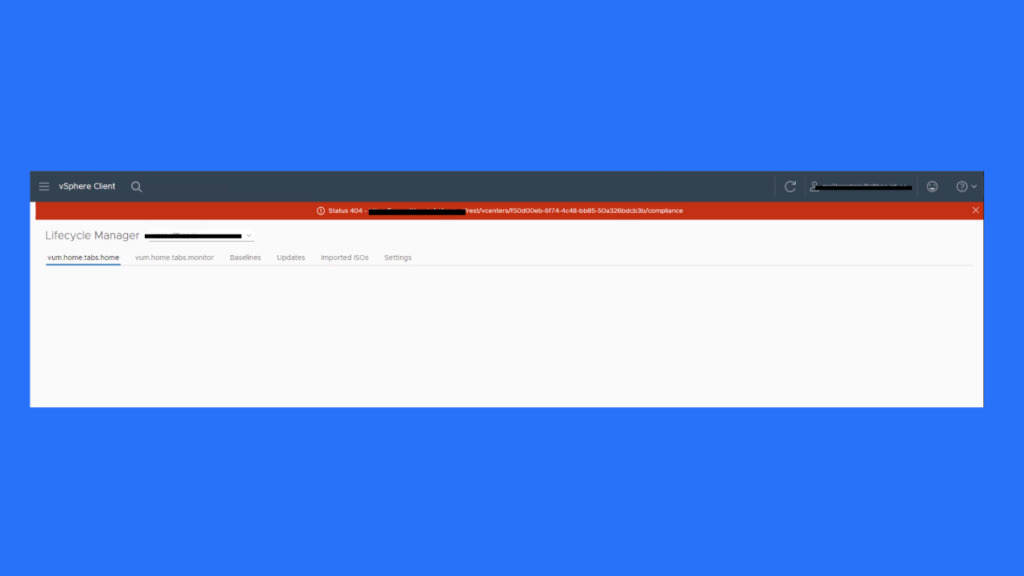
Table of Contents
What Causes the vCenter Lifecycle Manager Error?
There are a couple of possible causes for this issue:
- Inconsistencies during the vCenter upgrade process
- Lifecycle Manager services failing to start properly
These problems typically arise when the upgrade doesn’t initialize all services as expected or when certain configurations become corrupted during migration.
How to Fix vCenter Lifecycle Manager Error After Upgrade
There are two proven methods to resolve this issue—restarting the Lifecycle Manager service or resetting the VUM database. Let’s go over both in detail.
Workaround 1: Restart the Lifecycle Manager Service
If the Lifecycle Manager service didn’t start correctly after the upgrade, restarting it can often fix the problem.
Steps:
- Log in to your vCenter Server Appliance (VCSA) via SSH.
- Run the following commands one by one:
service-control --stop vmware-updatemgr
service-control --start vmware-updatemgr- Wait a few moments, then log back into vCenter and check the LCM section.
If the page loads correctly and the update tab displays as expected, your issue is resolved. If not, continue with the second workaround below.
Workaround 2: Reset the Update Manager (VUM) Database
If restarting the service didn’t solve the issue, the problem might lie in the Update Manager database. Resetting it can often fix deeper inconsistencies.
⚠️ Important Note:
Resetting the VUM database will permanently delete custom baselines, custom download settings, and manually imported patches or ISOs. Always back up your vCenter appliance before performing these steps.
Before You Begin
- Take a backup or offline snapshot of your vCenter Server Appliance (powered off).
- If vCenter is part of a Linked Mode replication setup, also back up all replicating nodes.
- Record any custom configurations in Update Manager (proxy settings, third-party URLs, etc.).
Reset Steps
- Stop the Update Manager service:
service-control --stop vmware-updatemgr- Run the reset command depending on your vCenter version:
- For vCenter Server Appliance 6.5:
/usr/lib/vmware-updatemgr/bin/updatemgr-util reset-db- For vCenter Server Appliance 6.7/7.0:
python /usr/lib/vmware-updatemgr/bin/updatemgr-utility.py reset-db- Clear the patch store:
rm -rf /storage/updatemgr/patch-store/*- Restart the Update Manager service:
service-control --start vmware-updatemgrOnce completed, log in to your vCenter again and check whether the Lifecycle Manager error has been resolved.
FAQs About vCenter Lifecycle Manager Error After Upgrade
This happens due to service startup issues or inconsistencies during the upgrade process. Restarting or resetting the Lifecycle Manager service usually fixes it.
Yes, but remember that resetting deletes custom baselines and settings. Always back up your vCenter before performing a reset.
Yes. You can resolve it by restarting the vmware-updatemgr service via SSH without rebooting the entire vCenter Server.
If the tab remains blank, proceed to reset the VUM database using the commands listed above.
Always verify service health and backup configurations before upgrading. Also, follow VMware’s recommended upgrade procedures.
Conclusion
The vCenter Lifecycle Manager error after upgrade is typically caused by incomplete service initialization or database inconsistencies. Fortunately, it can be resolved by restarting the service or resetting the Update Manager database. Always ensure you have proper backups before making system-level changes.
With these fixes, you should have your Lifecycle Manager up and running smoothly again—keeping your environment healthy and updates flowing efficiently.
Hi, Thanks
I’ve upgraded today from 6.7 to 7 and got this error.
Thanks for the solution! It works now.
Thanks for finding this helpful